Create your event on Laces, free
On a computer?
Point your phone camera at the code, or open laces.run/app on your phone.
Step 1
Get the Laces app
Open laces.run/app on your phone and it takes you to the App Store or Google Play. On a computer, scan the code at the top of this page with your phone camera.
Prefer a browser? You can use Laces on the web instead.
Get the app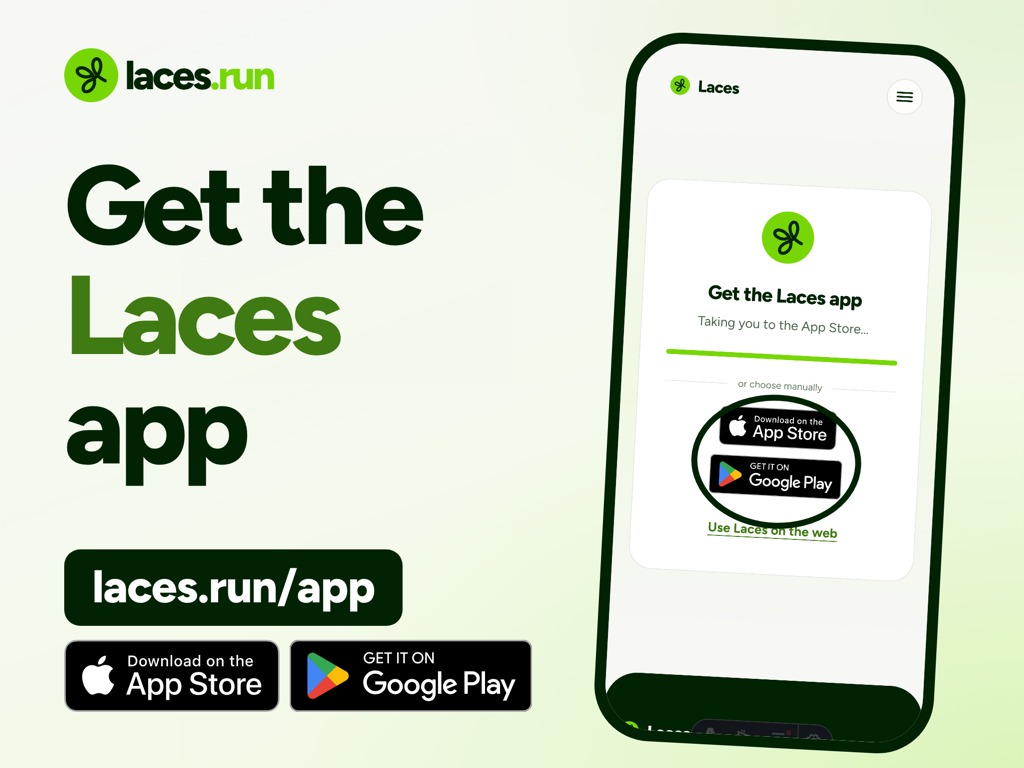
Step 2
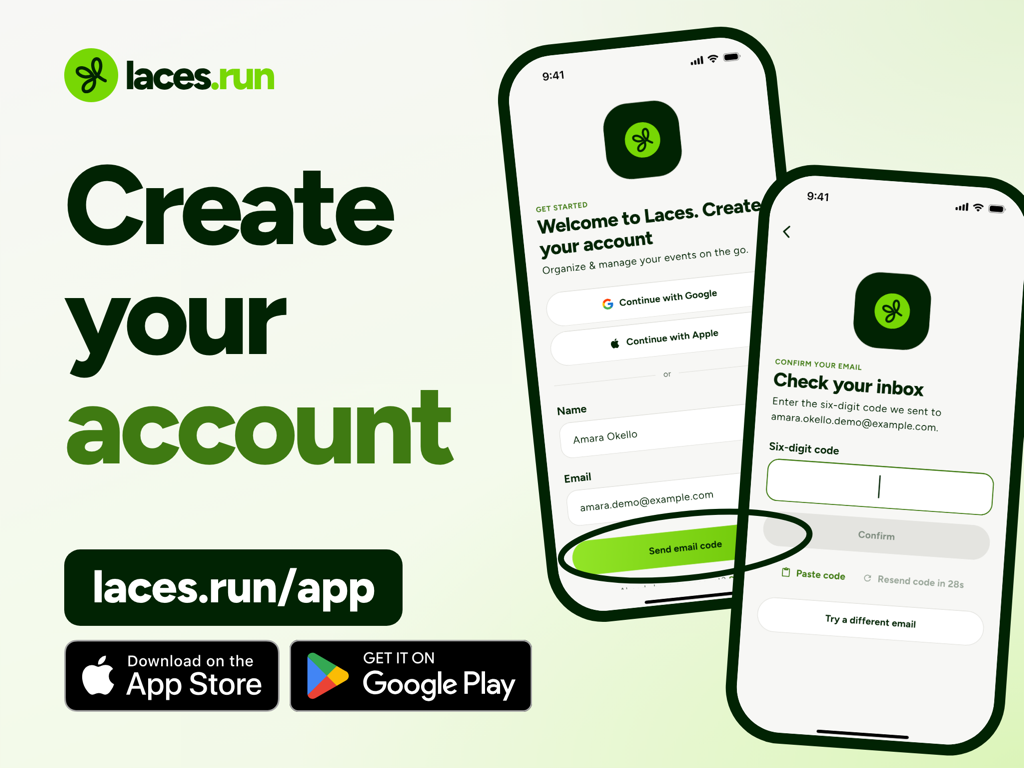
Create your account
Enter your name and email and tap Send email code. We email you a six-digit code: type it in and tap Confirm, then choose a password and tap Create account.
In a hurry? Tap Continue with Google or Continue with Apple instead.
Step 3
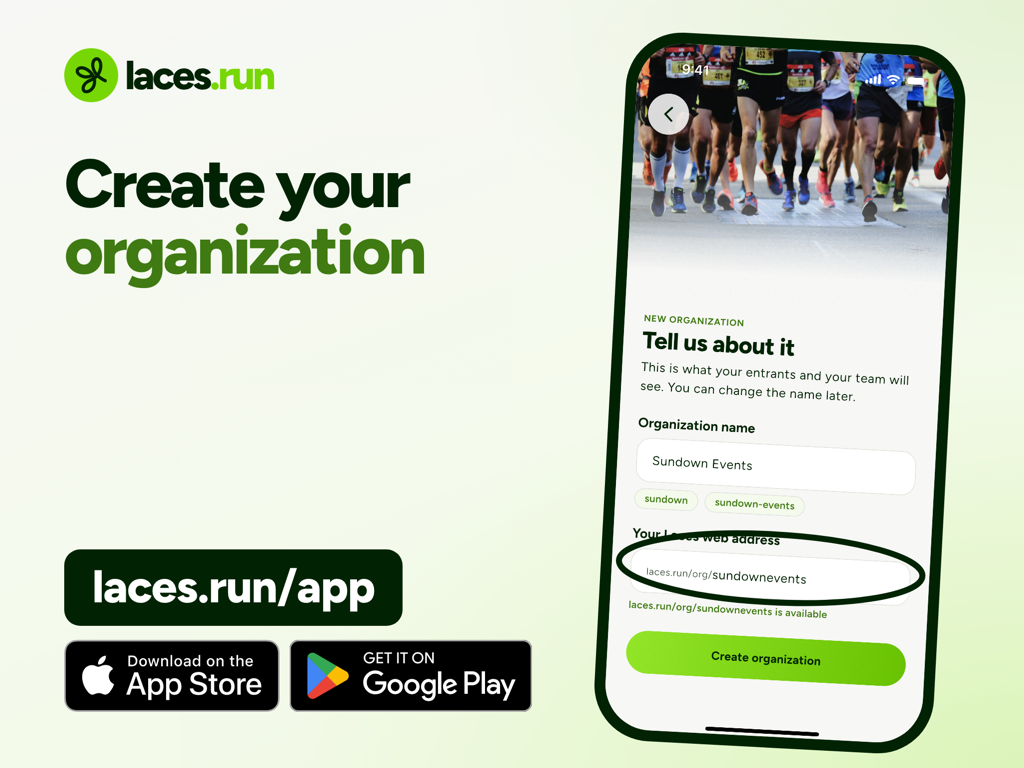
Create your organization
Your organization is the name participants see, and you can change the name later. Enter it, then check your Laces web address: it becomes laces.run/org/ followed by your handle, and the screen tells you when it is available.
Tap Create organization. You can change the web address once every 7 days, and old links keep working.
Step 4
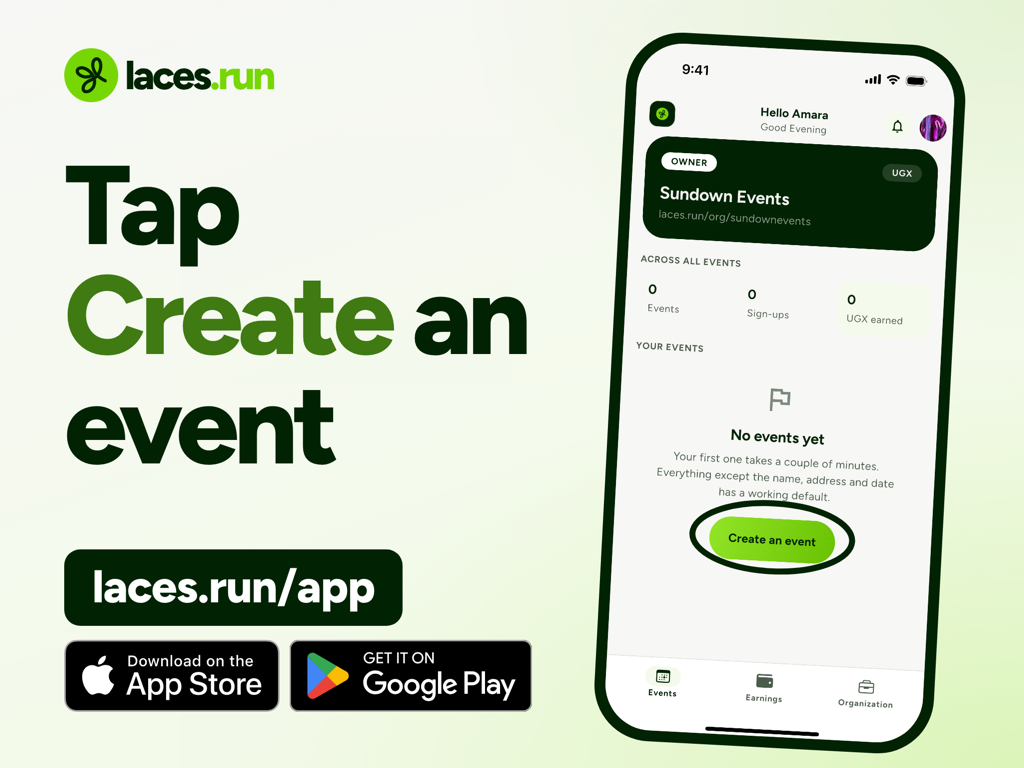
Tap Create an event
On your home screen, tap Create an event. A scrolling form called New event opens, and everything is on it, so you scroll rather than click through steps.
Step 5
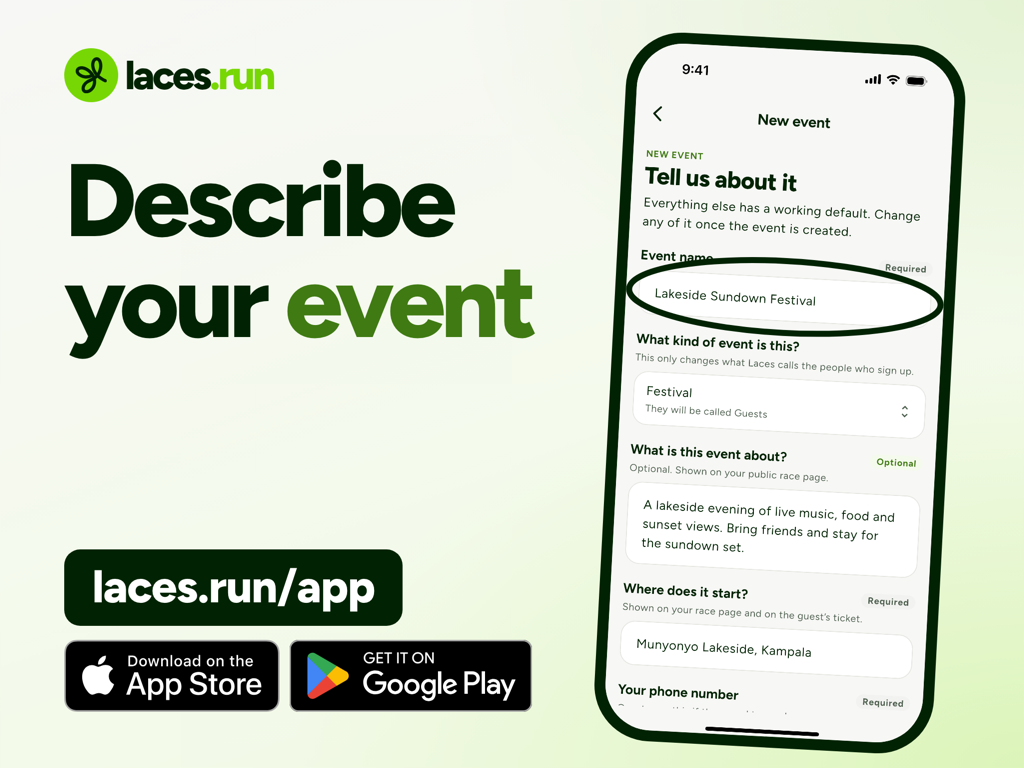
Describe your event
Give your event a name and choose what kind of event it is. The kind only changes what Laces calls the people who sign up: a festival has guests, for example.
Say what the event is about, where it starts, and add your phone number so guests can reach you.
Step 6
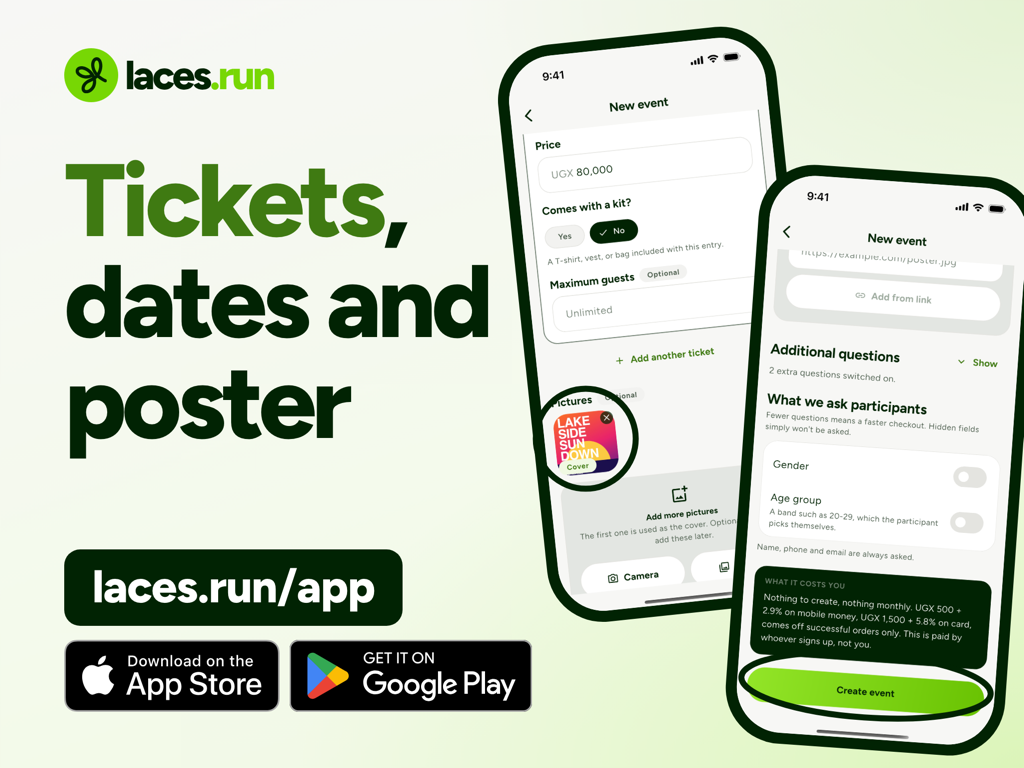
Add tickets, dates and a poster
Set when the event starts and ends, then add each ticket with a name and a price. The first picture you add is used as your cover, the poster at the top of your event page.
If you want to know something from every participant, add optional questions. The What it costs you card at the bottom explains the fees: nothing to create, nothing monthly, and the per-entry fee is paid by whoever signs up, not you. Then tap Create event.
Step 7
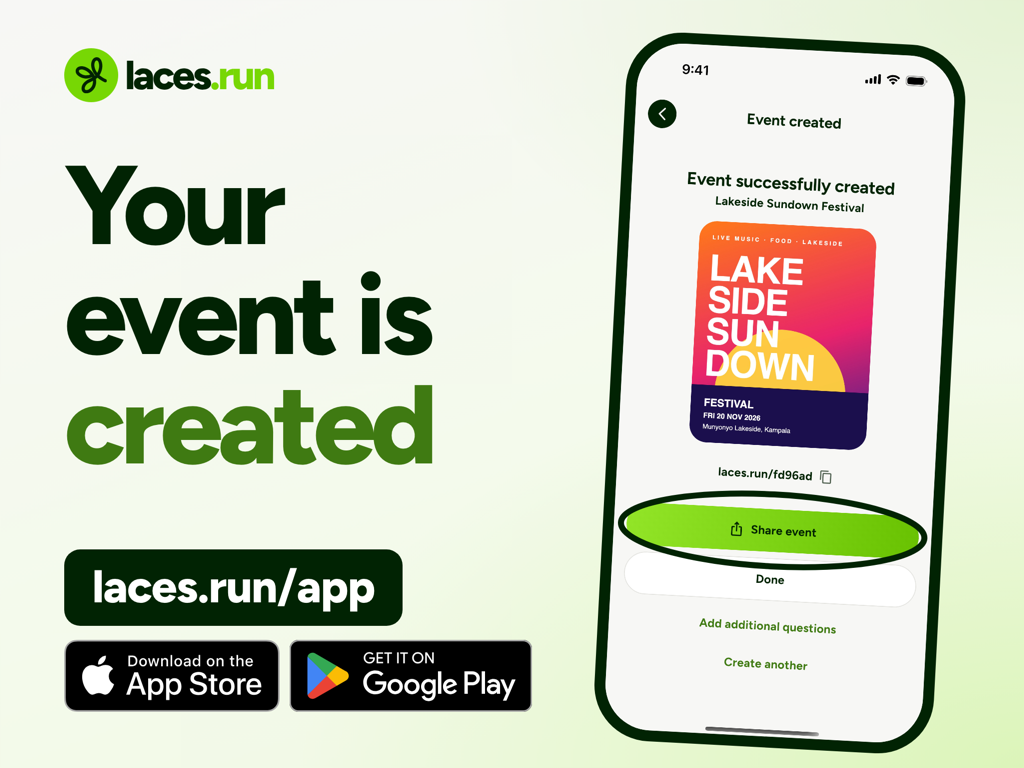
Your event is created
You land on a screen that says Event successfully created. It shows your poster and your event link, laces.run followed by your event code. Tap the link to copy it.
Your event page is already live at that link. Tap Share event to send it, or Done to finish.
Step 8
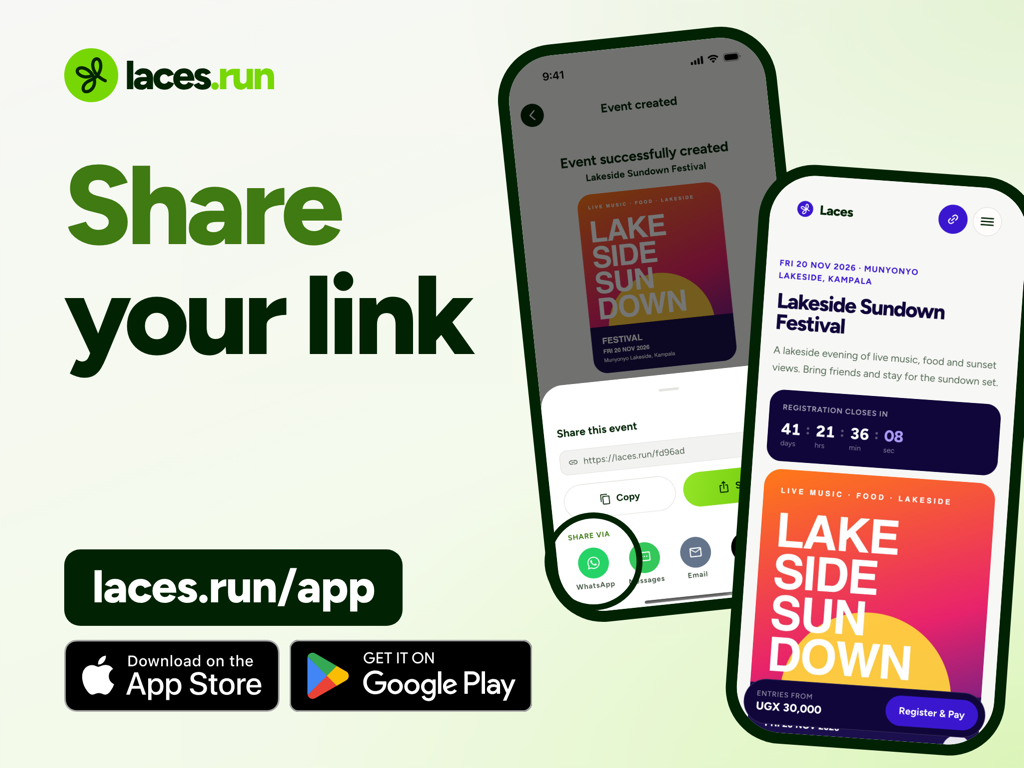
Share your link
Tap Share event. The share sheet shows your link with Copy and Share buttons, and one-tap options such as WhatsApp, Messages and Email. Paste the link into your groups, posters and bio.
Anyone who opens it sees your event page on laces.run and can register from their phone.
Step 9
Get cleared to take payments
Before your event can sell tickets, Laces has to clear your organization for payments. Until then your page shows in full, with your poster, tickets and dates, but participants cannot pay yet.
Our payments guide explains what we need from you and what happens next.
Read the payments guide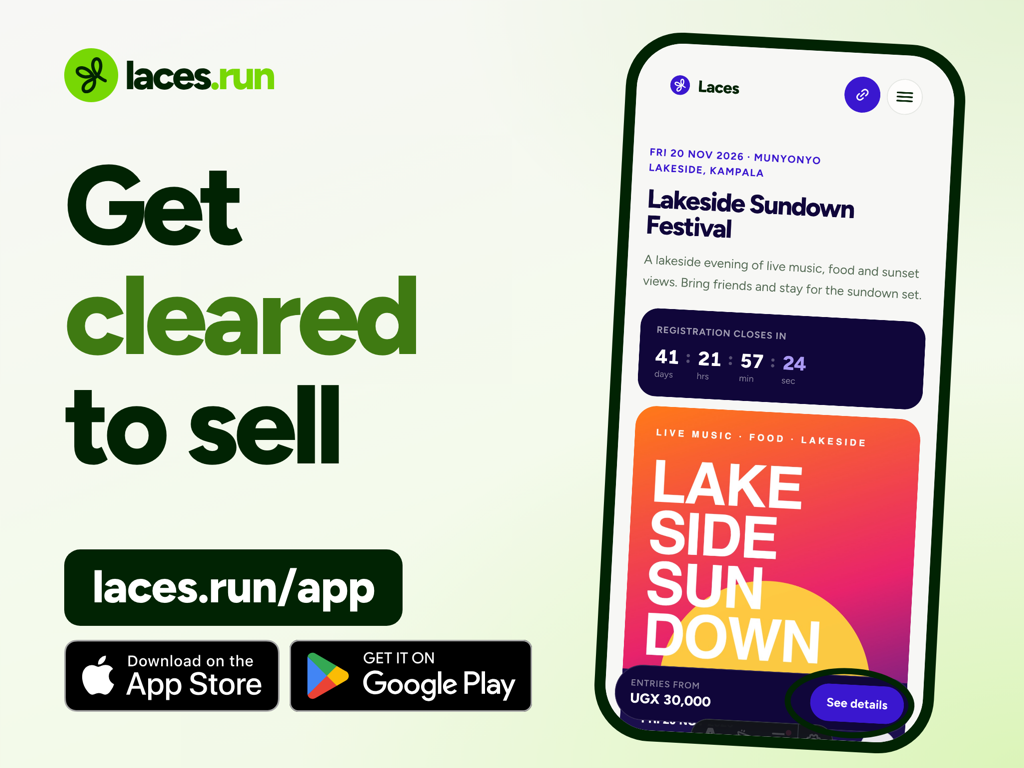
Step 10
Follow your event
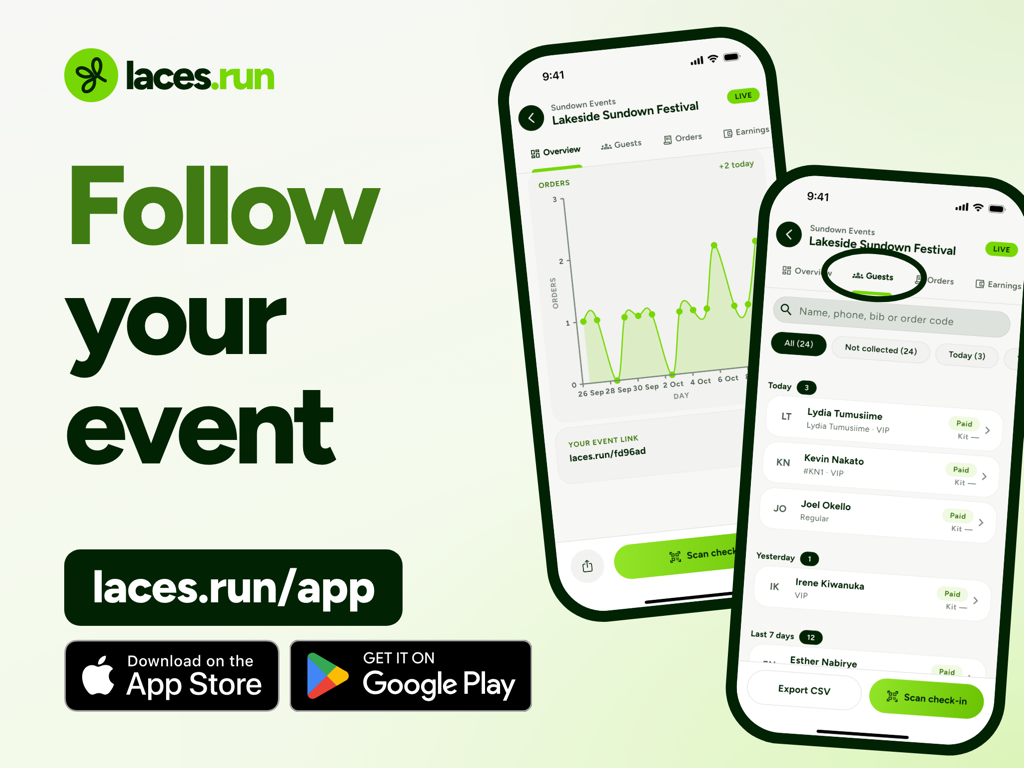
Tap your event and it opens on four tabs: Overview, a tab for the people who signed up, Orders and Earnings. Overview shows a countdown to when registration closes, your headline figures and a chart of orders over time.
The second tab is named for your kind of event: Guests for a festival, Runners for a run, Attendees for a conference. It lists everyone who registered. Orders lists every order with its status, and you can search by name, phone or order code.
Step 11
Watch your earnings
The Earnings tab shows what the event has earned you, split into Ready now and Clearing now, with the transaction history underneath. New sales show as clearing first, and you can withdraw them once they are ready.
While money is still clearing the Withdraw button stays switched off, and the screen tells you so. The payments guide explains how settlement and withdrawals work.
How withdrawals work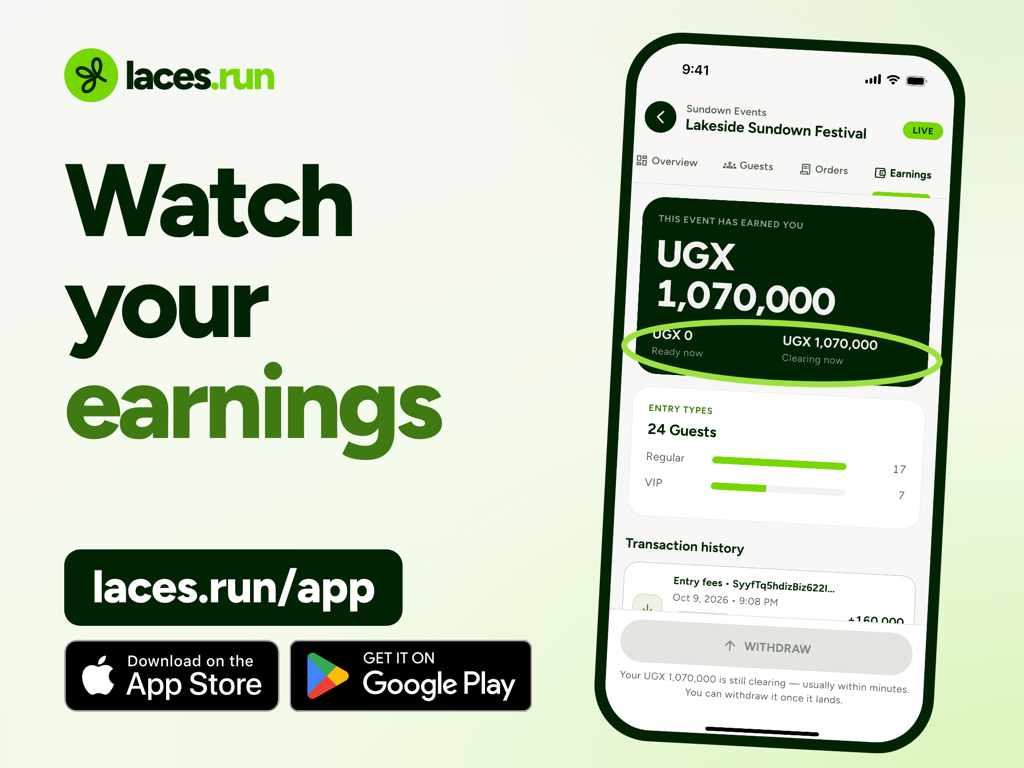
That's it
Your event is live. Share it.


Good to know
Quick answers for the moments people usually get stuck.
Do I need a computer to create an event?
No. The whole thing happens in the Laces app on your phone. If you would rather use a browser, Laces also works on the web at app.laces.run.
Does it cost anything to create an event?
No. Creating and publishing an event is free: there is no subscription and no listing fee. The per-entry fee is added at checkout and paid by the participant, so your tickets cost you nothing to list.
Why can't participants pay yet?
Laces clears each organization before it can take payments. Until yours is cleared, your event page shows in full but participants cannot pay yet. Write to payments@laces.run to ask where your clearance stands.
Can I change my organization's web address later?
Yes, once every 7 days. Links and QR codes that use the old address keep working and send people to the new one.
What will my participants see when they register?
They open your link, pick a ticket and pay, with no app and no account. Our participant guide walks through it step by step.